
















Your best blog post may contain 2,000 words of hard-won insight. It ranks on page one, gets shared in newsletters, and answers a question your audience genuinely cares about. Yet much of that audience never reaches the end—because they are already watching video on YouTube, TikTok, Instagram Reels, or LinkedIn.
Here is the uncomfortable truth about content repurposing: the bottleneck is rarely the content. You already have the research, structure, examples, and argument. The bottleneck is production—the cutting, caption syncing, voiceover recording, stock-footage hunting, and timeline editing that turn a strong article into something people will actually watch.
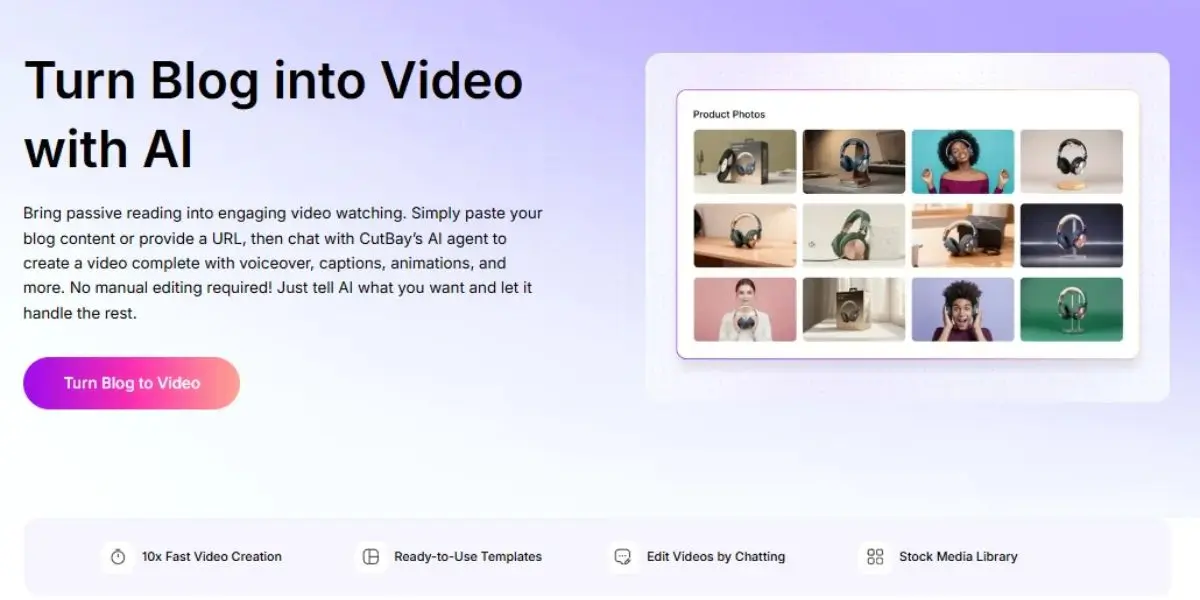
CutBay AI flips that equation. Instead of opening a blank timeline, you paste a blog URL, upload a document, or enter text, then describe the video you want. CutBay’s AI agent analyzes the source, plans the video, generates scenes with visuals, captions, voiceover, music, and animation, and lets you refine the result through natural-language chat.
This guide explains the complete workflow: how to prepare a blog post for conversion, how CutBay’s four-stage process works, how to write prompts that produce better videos, how to export for each platform, and where human review still matters. By the end, you will have a repeatable system for turning one article into a YouTube explainer, a vertical Short, and a LinkedIn-ready clip.
What is CutBay AI?
CutBay AI is a chat-based AI video agent that turns source material—including blog posts, URLs, documents, presentations, spreadsheets, images, and media—into finished videos. Rather than handing you a “smart” timeline and leaving you to assemble everything, CutBay starts with your existing content and builds a structured video around it.
For blog repurposing, CutBay offers a dedicated Blog to Video workflow. You can paste a blog URL, upload a local file, or enter text directly. The AI then creates a concise script and assembles a video with visuals, synchronized captions, voiceover, music, transitions, and animations.
CutBay was developed by PearlMountain Limited, the team behind FlexClip. That background matters because the product is built around production workflows, not only generative output: it combines conversational AI editing with a canvas-based editor for direct control over text, fonts, colors, and positioning.
The Four-Stage CutBay Workflow
CutBay follows a four-stage process: Understand, Plan, Produce, and Refine. Your role changes at each stage—from briefing the AI, to reviewing its plan, to approving the draft, to directing targeted revisions.
| Stage | What CutBay Does | What You Should Do |
|---|---|---|
| Understand | Analyzes your blog URL, document, or pasted text; identifies key points and source visuals. | Provide a clean article and define the audience, goal, tone, and platform. |
| Plan | Builds a structured script and scene brief before full generation. | Review the hook, runtime, scene order, voice, music, captions, and call to action. |
| Produce | Generates visuals, narration, captions, music, transitions, and animation. | Treat the output as a working draft—not a final export. |
| Refine | Applies chat-based edits and allows direct canvas edits. | Batch broad changes into one prompt; use canvas editing for precise fixes. |
Why Repurpose a Blog Post Into Video?
You should repurpose a blog post into video because it gives the same expertise a second life in the formats people already consume. A well-structured article already contains the expensive part—original thinking, research, examples, and a clear point of view. Video conversion turns that asset into something more discoverable and more shareable.
A blog-to-video workflow is especially valuable for:
Explainers: Convert “what is” and “how to” articles into short educational videos.
YouTube content: Turn a comprehensive guide into a narrated 16:9 walkthrough.
Short-form social: Extract one section into a 30–60 second vertical video.
LinkedIn: Repurpose an industry insight into a professional 1:1 or widescreen clip.
Email and landing pages: Add a concise video summary that links back to the full article.
Sales enablement: Turn a comparison, use case, or product guide into a sales-friendly explainer.
CutBay supports 16:9 for YouTube, 9:16 for TikTok, and 1:1 for social feeds, with customizable resolution, frame rate, and quality. That makes it practical to create multiple versions from one source article instead of rebuilding each video from scratch.
What CutBay AI Automates
CutBay automates the mechanical production work that usually prevents teams from publishing video consistently. After receiving your blog content, it can generate the script, plan scenes, select or create visuals, add captions and voiceover, apply music and motion graphics, and prepare the project for export.
| Production Task | What CutBay Delivers | Your Quality Check |
|---|---|---|
| Content analysis | Reads the blog and extracts the central message and key points. | Confirm the AI selected the right main idea. |
| Scriptwriting | Creates a concise video script from the article. | Remove vague claims and match your brand voice. |
| Scene planning | Maps content into a visual sequence. | Ensure each scene communicates one idea. |
| Visuals | Assembles scenes and inserts relevant visual elements. | Replace generic visuals with screenshots, product footage, or brand assets. |
| Voiceover | Adds narration to the video. | Check pronunciation, pacing, emphasis, and factual accuracy. |
| Captions | Generates synchronized subtitles. | Verify names, numbers, technical terms, and line breaks. |
| Music and motion | Adds background music, transitions, animations, and motion graphics. | Match intensity to the platform and audience. |
| Editing | Supports chat-based revisions and a canvas editor. | Use specific instructions rather than broad feedback. |
| Export | Provides MP4, MOV, and WebM output up to 1080p. | Export each aspect ratio separately for best composition. |
How to Turn a Blog Post Into a Video Using CutBay AI
The most reliable workflow is: choose one focused blog post, define one viewer outcome, submit the article to CutBay, audit the scene brief, generate a draft, run one consolidated revision, polish manually, and export for the intended platform. CutBay describes its blog-to-video process as entering the blog, generating the video, then refining and exporting.
Step 1: Choose the Right Blog Post
Start with an article that makes one clear promise. “How to Reduce Customer Churn in 30 Days” converts more naturally into video than a sprawling pillar page that covers ten loosely connected topics.
The best candidates have:
A specific audience and problem
A numbered process, checklist, or framework
One central insight, statistic, or surprising result
Clear H2 headings that can become scene beats
Original screenshots, charts, photos, or examples
A logical call to action
You do not need to convert every word. In practice, the strongest video is a distilled version of the article: hook, problem, three to five key points, proof, and next step.
Expert Insight: Treat the blog post as research, not as a finished script. If the article takes eight minutes to read, aim for a 60–90 second social video or a 2–4 minute YouTube explainer. Preserve the decision the viewer can make—not every sentence they could read.
Step 2: Prepare the Article for Extraction
CutBay accepts a blog URL, an uploaded file, or direct text entry. The input method you choose affects how much cleanup the AI needs.
| Input Method | Best For | Preparation Tip |
|---|---|---|
| Blog URL | Published, cleanly formatted articles | Test this first; CutBay can extract key points and on-page images. |
| Uploaded document | Drafts, PDFs, DOCX, Markdown, or internal guides | Remove comments, tracked changes, navigation, and boilerplate. |
| Pasted text | Highly controlled repurposing | Paste only the section you want in the video. |
Before submitting, make these quick edits:
Put the main takeaway in the first two paragraphs.
Rewrite H2s as short, declarative scene labels.
Remove affiliate disclaimers, sidebar text, and repetitive introductions.
Highlight the exact statistic, quote, or example you want emphasized.
Add a one-line audience statement, such as: “This video is for B2B marketers who want more qualified leads.”
Decide the target platform and approximate runtime before generation.
A clear H2 structure helps the AI map sections to visual beats. If each heading reads like a scene title—“Why Blog Videos Get More Reach,” “Paste Your URL,” “Review the Scene Plan”—the first draft is usually easier to shape.
Step 3: Open CutBay and Submit the Blog
Open CutBay’s Blog to Video tool and paste the published URL, upload the article file, or enter the text directly. If the blog is already live and visually clean, begin with the URL path; it preserves on-page visuals and avoids an unnecessary upload cycle.
Then give the AI a creative brief. This is the difference between a generic video and a useful one.
Use a prompt structure like this:
Turn this blog post into a 75-second educational video for [audience].Goal: Help viewers understand [main outcome].

Tone: Clear, confident, practical.

Platform: TikTok / YouTube / LinkedIn.

Format: 9:16 / 16:9 / 1:1.

Must include: [statistic], [example], [call to action].

Avoid: Jargon, vague claims, and long introductions.
Example: Turn this blog post into a 75-second TikTok video for content marketers. Goal: Show how to turn one blog post into a shareable video without learning a video editor. Tone: Direct, practical, conversational. Format: 9:16 vertical. Must include: Paste blog URL, review the scene plan, refine by chat, export for TikTok. Call to action: “Turn one old blog post into a video this week.” Avoid: Corporate language and generic stock-footage explanations.
Step 4: Audit the Script and Scene Brief
This is the highest-leverage checkpoint in the entire workflow. Before full generation, CutBay builds a structured script and scene plan that can include duration, aspect ratio, content source, voice selection, music, subtitles, key points, and color palette.
Review the brief against three questions:
Does the hook land within the first five seconds?
Does the estimated runtime match the destination platform?
Does the final scene give viewers a clear next step?
Read the script aloud. If a line sounds like something no one would say in conversation, rewrite it. Strong video scripts use short sentences, direct address, concrete nouns, and one idea per scene.
A reliable structure is:
Hook: State the problem, payoff, or surprising result.
Context: Explain who this matters to and why.
Core insight: Give the main answer immediately.
Proof or process: Show steps, data, screenshots, or an example.
Objection: Address the likely “but what about…” concern.
Call to action: Tell viewers exactly what to do next.
For this article, the hook could be: “Your best blog post is invisible to half your audience.” The core insight is that CutBay turns a URL, file, or pasted article into a narrated, captioned video you can refine through chat.
Pro Tip: Iterate in the planning stage. The scene brief costs far less time and effort than regenerating a finished video, so cut tangents, sharpen the opening, and lock the call to action before you press generate.
Step 5: Generate the First Draft
Once the brief is approved, let CutBay produce the video. It generates scenes, visuals, captions, voiceover, music, and animation based on your source content and instructions.
Do not expect a final cut. Treat the first render as a structured draft made visible. Your review should focus on whether the video is clear, credible, on-brand, and suited to the platform—not whether every visual choice is perfect on the first pass.
A useful test from a documented CutBay review found that a 30-second brief produced a 34.6-second preview—about 15% longer than requested. That does not mean the tool failed; it means you should compare the generated duration with your intended runtime before exporting.
Step 6: Refine the Video With Chat Prompts
This is where CutBay differs most from single-shot AI video generators. You can request changes in plain language—rewrite a scene, change pacing, adjust music, replace visuals, alter captions, or update colors—and the agent updates the project.
Use specific prompts rather than vague feedback.
| Weak Prompt | Better Prompt |
|---|---|
| “Make it better.” | “Make the opening more direct: start with ‘Your blog post is sitting unused. Here’s how to turn it into a video.’” |
| “Change the visuals.” | “Replace the generic office footage in Scene 2 with a screen recording of a blog URL being pasted into CutBay.” |
| “Fix the voiceover.” | “Make the voiceover calmer and slower in Scene 4. Emphasize the phrase ‘in minutes.’” |
| “Improve captions.” | “Correct ‘CutBay’ throughout and limit captions to seven words per line.” |
| “Make it shorter.” | “Reduce the video from 90 seconds to 60 seconds by removing Scene 3 and combining Scenes 5 and 6.” |
| “Change the branding.” | “Change the primary accent color from blue to teal across all scenes, including the closing wordmark.” |
A practical caution: global style changes may not update every residual element on the first pass. In one review, a request to change blue accents to teal updated the main palette but left a small wordmark unchanged until a second targeted revision. Build one revision cycle into your workflow for brand-color changes.
Step 7: Use the Canvas Editor for Final Polish
For pixel-level corrections, use CutBay’s canvas-based editor instead of asking the AI to regenerate. You can directly adjust text, fonts, colors, and element positioning without triggering a full regeneration cycle.
Use the canvas editor for:
Correcting a misspelled brand name
Repositioning a caption or logo
Changing font size for mobile readability
Fixing a color that survived a global style change
Adjusting the closing card or call-to-action text
This hybrid approach is efficient: use chat for structural and stylistic changes, then use direct editing for precision.
Step 8: Add Original Proof and Brand Assets
AI can assemble a competent video quickly, but credibility comes from specifics. Add the assets only your business can provide:
Product screenshots
Customer quotes
Original charts and data
Team photos or founder commentary
Brand colors, fonts, and logo
Real workflow examples
A recognizable closing card
CutBay accepts images, video clips, audio, presentations, documents, spreadsheets, and other media as inputs, so you can combine AI-generated structure with proprietary proof.
Expert Insight: The best repurposed videos usually follow an 80/20 rule: 80% clear narrative structure, 20% unmistakably original proof. A stock clip can explain the concept; your screenshot, customer result, or product demo makes it believable.
Step 9: Export for Each Platform
Do not export one video and post it everywhere unchanged. CutBay supports 16:9, 9:16, and 1:1 aspect ratios, with export options including MP4, MOV, and WebM at resolutions up to 1080p.
| Platform | Recommended Format | Ideal Length | Content Approach |
|---|---|---|---|
| YouTube | 16:9 | 2–6 minutes | Full explainer with a clear promise, chapters, and strong call to action. |
| YouTube Shorts | 9:16 | 30–60 seconds | One insight, fast hook, bold captions. |
| TikTok | 9:16 | 20–60 seconds | Conversational, practical, pattern-interrupt opening. |
| Instagram Reels | 9:16 | 20–60 seconds | Visual-first, benefit-led, strong final frame. |
| 1:1 or 16:9 | 45–90 seconds | Professional insight, business outcome, minimal hype. | |
| Website or email | 16:9 or 1:1 | 30–90 seconds | Summarize the article and link to the full post. |
Export each ratio separately rather than cropping one file afterward. Scene composition, text placement, and visual hierarchy hold up better when the video is generated for its intended frame.
Step 10: Publish, Measure, and Improve
After exporting, publish with a platform-native mindset:
Write a new title; do not paste the blog headline unchanged.
Add a short description containing the primary keyword and a link to the original article.
Use captions even when audio is available.
Pin a comment with the blog link on YouTube or LinkedIn.
Track watch time, retention, clicks, shares, saves, and conversions—not just views.
A video that earns views but does not move viewers toward the article, newsletter, product, or demo is entertainment rather than repurposing.
CutBay AI at a Glance
| Capability | What CutBay Provides | Practical Consideration |
|---|---|---|
| Inputs | Blog URLs, documents, presentations, spreadsheets, images, video, audio, and prompts. | Clear subheadings and original visuals produce stronger first drafts. |
| Output elements | Script, scenes, visuals, captions, voiceover, music, and animation. | Review caption wording for fidelity to the original article. |
| Editing | Chat-based commands plus a canvas editor for direct adjustments. | Batch chat requests; use canvas editing for small fixes. |
| Aspect ratios | 16:9, 9:16, and 1:1. | Export separately for YouTube, Reels/TikTok, and LinkedIn. |
| Export formats | MP4, MOV, and WebM up to 1080p. | A documented export confirmed 1920×1080 at 30fps in H.264. |
| Free tier | Approximately 10 credits, about one video, 720p output, with a watermark. | Use it to test URL extraction on one post before committing. |
| Paid entry | Pro at about $21 per month billed annually; 500 credits, 1080p, no watermark. | Credit use varies by project complexity; one reviewed job used about 80 credits for a video plus revision. |
A Practical Case Study: Turn This Article Into a Video
Imagine you publish this exact article. You want a 60-second TikTok video for content marketers who feel behind on video.
Input: Paste this article’s URL into CutBay’s Blog to Video tool, or paste only the workflow section into the text field.
Creative brief:
Create a 60-second vertical video for content marketers.Goal: Show how to turn an existing blog post into a video without learning a video editor.

Tone: Direct, practical, conversational.

Format: 9:16.

Must include: Paste blog URL, review the scene plan, generate the draft, refine by chat, export for TikTok.

Call to action: “Try turning one old blog post into a video this week.”

Avoid: Corporate language, vague claims, and long introductions.
Likely scene structure:
Hook: “Your best blog post is invisible to half your audience.”
Problem: People scroll video feeds but do not always open long articles.
Solution: CutBay turns a blog URL, file, or pasted text into a video.
Process: The AI creates a script, visuals, captions, voiceover, music, and animations.
Control: You refine the result through chat or the canvas editor.
Close: “Take one old post. Turn it into one video. Publish it today.”
That is a complete, useful video built from content you already researched and wrote.
Honest Limitations and Workarounds
CutBay is a serious production accelerator, but it is not a “set and forget” system. Three limitations matter most for blog repurposing.
Instruction fidelity can drift. A generated script may expand or alter your original wording, and the first render can run longer than requested. Review the scene brief as a contract and compare duration with your target before export.
Global style changes may need a second pass. Brand-color or visual-style requests can update most elements while leaving a small residual item unchanged. Budget one revision cycle and use the canvas editor for the remainder.
The first draft is a draft. CutBay is designed for conversational refinement, not one-click perfection. Teams that treat the first output as a structured starting point will move faster than teams expecting a publish-ready final cut.
Quality Checklist Before Publishing
Run every CutBay-generated video through this five-minute review:
Does the first sentence create curiosity or state a clear benefit?
Is the main takeaway obvious within the first 10 seconds?
Are all statistics, names, product features, and claims accurate?
Do captions match the voiceover exactly?
Are visuals relevant rather than merely attractive?
Does the video sound like your brand?
Is the call to action specific and achievable?
Is the aspect ratio correct for the destination platform?
Have you linked back to the original blog post?
Did you watch the full export before publishing?
Conclusion & Next Steps
The real value of CutBay AI for blog repurposing is not that it replaces editorial judgment. It removes the mechanical labor between having a strong article and having a distributable video. You provide the source content and creative direction; CutBay handles script structure, scene assembly, captions, voiceover, music, and animation; then you refine the result through chat and direct editing.
Do not convert your entire archive at once. Pick your highest-traffic evergreen post, run it through the URL-to-Video path, audit the scene brief, generate one draft, make one consolidated revision, and export a 16:9 version. Watch it end to end before editing anything else. That single cycle will tell you more about whether CutBay fits your content operation than any feature list.
The content is already written. The timeline no longer has to be the barrier.
FAQs
How does CutBay AI turn a blog post into a video?
CutBay analyzes a blog URL, uploaded document, or pasted text, extracts key points and source visuals, builds a script and scene plan, then generates a video with visuals, captions, voiceover, music, and animation. You refine the draft through chat commands or the canvas editor before exporting.
Can CutBay convert a blog post into a vertical video for Reels or TikTok?
Yes. CutBay supports 16:9, 9:16, and 1:1 aspect ratios, so one blog post can be exported as a widescreen YouTube video and a vertical short-form video without rebuilding the project from scratch.
How much does CutBay AI cost for blog-to-video conversion?
The free tier includes roughly 10 credits—about one video—at 720p with a watermark. The Pro plan is approximately $21 per month billed annually and includes 500 monthly credits, 1080p export, and no watermark; credit consumption varies by project complexity.
Does CutBay require video editing experience?
No timeline-editing experience is required. The primary workflow is conversational: you describe changes in plain language and the AI agent applies them. A canvas editor is available for direct text, font, color, and positioning adjustments when you need precise control.
What is the main limitation of using CutBay for blog repurposing?
The generated script may expand or alter your original wording, and the first render can run longer than your brief. Treat the scene plan as a checkpoint, review the duration before export, and budget one revision cycle for brand-style changes.