













How many hours have you spent crafting the perfect PowerPoint presentation, only to watch your audience zone out after two minutes? Worse yet, how many of those presentations end up dying on your hard drive after a single meeting?
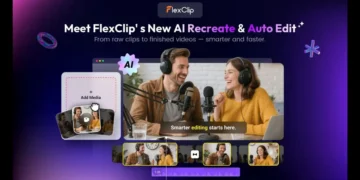
Now imagine being able to give that content a second life. Imagine that with a single click, those static slides transform into dynamic videos, ready for YouTube, social media, or interactive training sessions. This is now a reality thanks to FlexClip’s latest launch: their new AI PPT to Video converter.
Let’s be real for a second. How many hours have you poured into a PowerPoint presentation, only to watch it gather digital dust the moment the meeting ends? You craft the perfect narrative, design sleek slides, and deliver a killer pitch, but the engagement usually dies right there with the applause. In today’s content-obsessed world, that static deck sitting on your hard drive is pure gold—and you’re leaving it all on the table. What if you could breathe new life into that content with just one click?
Say hello to FlexClip AI PPT to Video, the game-changing feature that’s completely redefining content repurposing in 2026. Picture this: transforming those boring bullet points and static charts into dynamic, scroll-stopping videos ready for YouTube, TikTok, or your website in literally seconds. This isn’t just about saving time—it’s about unlocking higher conversion rates from assets you’ve already created. In this guide, we’re going deep on how this tool actually works, why it matters for your entire marketing funnel, and how you can use it to maximize your LTV (Lifetime Value) by keeping your audience hooked at every single touchpoint.
What Exactly Is FlexClip AI PPT to Video and Why Should You Care?
At its heart, FlexClip AI PPT to Video is a smart, cloud-based converter that uses artificial intelligence to automatically turn your PowerPoint presentations (PPT, PPTX) and PDFs into fully produced video presentations. But honestly? Calling it just a “converter” is like calling a Ferrari just a “car.” This thing completely deconstructs your slides and rebuilds them from scratch as a full-blown multimedia experience.
Here’s how it works in plain English: You upload a file (up to 50MB and 50 pages). The AI doesn’t just take screenshots of your slides—it actually reads your content, understands what you’re talking about, and then rebuilds everything. It adds relevant background music, generates perfectly synced subtitles automatically, and—here’s the magic—matches your text with intelligent B-roll footage. That stat about market growth you mentioned? The AI finds a clip of a rising graph or a bustling cityscape to make it visual. Within minutes, you go from a static presentation to a professional video that actually looks like you spent days on it.
So what’s it actually good for? Simple: it maximizes the shelf life and impact of every piece of content you create. Instead of a deck that lives forever on your hard drive, you get a video that lives on social feeds, drives real engagement, and nurtures leads through your entire sales funnel. It’s the ultimate tool for turning a one-time asset into something that keeps working for your brand 24/7.
Core Features of FlexClip AI PPT to Video That Actually Matter
This isn’t some one-trick pony that just slaps your slides together. The “PPT to Video” tool runs on a seriously robust suite of AI features that all work together. Let’s pop the hood and see what’s really driving this thing.
1. Intelligent Scene Matching (The Real Magic)
This is absolutely the star of the show. Unlike basic tools that just pan across your slides (you know, that boring “Ken Burns” effect that puts everyone to sleep), FlexClip’s AI actually analyzes your text. If a slide talks about “teamwork,” the AI goes and finds relevant stock footage of people actually collaborating. This contextual awareness is what transforms a boring screen recording into a compelling video narrative that people actually want to watch.
2. Auto-Generated Subtitles and Voiceovers
Here’s a truth bomb: accessibility drives engagement. The AI automatically generates accurate subtitles, which is absolutely crucial since something like 85% of social media videos get watched without sound. You can also add AI voiceovers that don’t sound like robots from 2015.
Text-to-Speech: Choose from over 400 voices across 140+ languages and dialects. Need a Taiwanese-accent Mandarin voice for a specific market campaign? They’ve got it.
Perfect Sync: The subtitles line up perfectly with either the AI voiceover or any audio you import, giving you that professional finish without the headache.
3. The “Remix” Factor: Editing After Conversion
Here’s what separates FlexClip from cheaper options: once the AI builds your video, you’re not stuck with it. You land right in the familiar FlexClip timeline editor. From there, you can:
Swap out any AI-selected footage for other options from their massive stock library
Adjust the pacing of individual scenes
Add motion graphics, stickers, or text overlays to hammer home key points
4. AI Music Generator
In 2026, FlexClip dropped an AI music generator that’s actually good. You can now literally prompt the AI to create a specific mood—like “upbeat corporate background music” or “tense dramatic buildup”—directly inside the tool, which means zero copyright headaches down the road.
How to Convert a PowerPoint to Video with FlexClip: Step-by-Step
Ready to breathe new life into that old deck? Here’s your complete actionable checklist for using FlexClip AI PPT to Video like a pro.
Step 1: Upload Your File
Log into your FlexClip account (free or paid works) and head to the “Tools” section. Find the AI PPT/PDF to Video tool. Drag and drop your file. Remember those limits: max 50MB and 50 pages.
Step 2: Configure Your AI Settings
This is where you tell the AI exactly how you want it to perform.
Voiceover: Switch this ON. Pick your language, voice style, speed, and pitch. Do you want a friendly, upbeat narrator or something deeper and more authoritative?
Subtitles: Switch this ON too. Pick your preferred subtitle style. Trust me, this is non-negotiable for engagement on platforms like Instagram, Facebook, and TikTok.
Step 3: Generate and Preview
Hit that “Generate” button. This is where the AI goes to work. It analyzes every slide and builds your video scene by scene. Grab a coffee—this takes seconds, not hours.
Step 4: Edit in Timeline (This Is the Secret Sauce)
Once the AI finishes, you’ll land in the main editor. Whatever you do, don’t just export it yet.
Watch the full preview carefully. Does the AI-chosen footage actually match your brand voice and message?
Swap out any clips that feel slightly off-brand or just not right.
Fine-tune your audio levels so the voiceover doesn’t get drowned out by background music.
Step 5: Export and Conquer
Choose your export settings based on your plan. For professional work, 1080p is the standard, but 4K is where things are heading. Download that MP4 file and schedule it for your next campaign. You just turned hours of work into minutes.
Who Actually Benefits from This AI Conversion Tool?
The beautiful thing about this tool is how versatile it is. It solves one universal problem that almost every business faces: “How do I create more video content without hiring an expensive film crew?” Here’s exactly who gets the most value.
Marketers and Agencies
Your entire world revolves around the conversion rate of your content. Turn case study decks into YouTube testimonials that build trust. Convert sales enablement PDFs into LinkedIn carousel videos that stop the scroll. The ability to repurpose a single asset across multiple channels dramatically improves your marketing efficiency and squeezes every drop of value from every piece of content you create.
Educators and Trainers
Got a training module stuck in PowerPoint? Convert it into a video lecture your students can actually watch on their phones. The AI auto-subtitles make it accessible to everyone, including non-native speakers who might struggle with audio-only content. This works perfectly for funnel stages where you’re nurturing leads with educational content at the top.
Small Business Owners
Let’s be real—you don’t have time to learn Adobe Premiere. You need quick wins that actually move the needle. Got a pitch deck for investors? Turn it into a video pitch you can email. Have a product catalog PDF? Transform it into a promotional video for your website homepage. This tool lets you look like a high-budget operation without any of the overhead.
Content Creators
Want to start a “faceless” YouTube channel but don’t want to show your face? Write your entire script in PowerPoint (using the speaker notes feature) and let FlexClip turn it into a full video with visuals, voiceover, and background music. It accelerates your workflow so dramatically you won’t believe you ever did it any other way.
What Limitations Does FlexClip AI PPT to Video Have?
Let’s practice some responsible marketing tech evaluation here. No tool on earth is perfect, and honestly, knowing the risks and limitations upfront saves you from massive workflow headaches later.
The “Control Freak” Problem: The AI is impressively smart, but it’s not you. Sometimes it picks a visual that’s almost right, but just slightly off. You can absolutely change it manually, but if you need pixel-perfect control over every single frame from the very beginning, this automated workflow might feel restrictive.
Processing Time Reality: For longer presentations with 30+ slides, or when you’re rendering in glorious 4K, the cloud-based processing actually takes time. A simple 2-minute video might need up to 5 minutes to render completely.
Internet Dependency: This is 100% cloud-based. If your internet connection drops or gets spotty, your entire workflow just stops dead.
Quality Behind a Paywall: Let’s be honest—the free version is basically just a demo. Those watermarks, the 720p limit, and the reduced AI quotas mean that for any serious business use, you absolutely must budget for the Plus or Business plan.
Complex Animations Get Simplified: If your PowerPoint relies on complex, custom animations with precise timing, the AI will simplify them. It translates your content faithfully, but it doesn’t always preserve those fancy animation gymnastics.
FlexClip vs. Other PPT to Video Conversion Tools
How does FlexClip actually stack up against the competition in 2026? The AI video space is crowded as hell, but FlexClip occupies a unique “repurposing” niche that nobody else quite fills.
FlexClip vs. Traditional Video Editors (Adobe Premiere Pro, Final Cut, DaVinci Resolve)
Winner: FlexClip (for this specific task, by a mile). Trying to convert a PPT to video in Premiere is what I call “Manual Hell.” You have to import every slide as an image, record voiceover separately, hunt for footage, and sync subtitles manually frame by frame. It could take literal days. FlexClip does it in minutes.
The Trade-off: You absolutely lose granular control. If you’re a professional filmmaker with years of experience, you won’t swap Premiere for FlexClip. But for 90% of business use cases, speed wins every single time.
FlexClip vs. AI Text-to-Video Tools (Synthesia, InVideo, Lumen5, Pictory)
This is where the comparison gets interesting.
Synthesia is incredible for creating AI avatars that speak your script. It’s built for “text-to-video” from absolute scratch.
InVideo and Lumen5 are solid for turning blog posts and articles into videos.
FlexClip’s Secret Weapon: FlexClip absolutely dominates when you have existing assets. Its AI is specifically optimized to read your PPT/PDF structure and maintain the logical flow of your argument. It’s about repurposing what you already own, not just creating something new from nothing.
Quick Comparison Table
| Feature | FlexClip AI PPT to Video | Traditional Editing Software | AI Text-to-Video (InVideo/Lumen5) |
|---|---|---|---|
| Core Strength | Repurposing existing decks | Total creative control | Building from a blank script |
| Workflow | Fully automated upload and go | Manual import/edit everything | Paste script into template |
| AI Visuals | Contextual to your actual slide text | None—you find everything | Keyword-based stock footage |
| Learning Curve | Basically zero | Very steep—months to master | Low to moderate |
| Time Investment | Seconds to minutes | Hours to days | Minutes |
How to Maximize Your Results with FlexClip AI
You’ve got the tool. Now let’s talk about optimizing your output. How do you ensure your AI-generated video doesn’t look obviously AI-generated? Here are my top strategies for squeezing every drop of value out of this platform.
Optimize Your Source Deck for the AI
Here’s a truth: garbage in, garbage out. The AI reads your slides, so help it help you.
Use Concise Text: Slides packed with dense paragraphs confuse the AI and look terrible in video format. Stick to bullet points and short, punchy phrases.
High-Quality Images Matter: If your deck has images, make sure they’re high resolution. The AI will use them prominently.
Speaker Notes Are Secret Gold: While not explicitly documented, having clear, concise speaker notes helps the AI understand your narrative arc much better.
Always Do the “Human-in-the-Loop” Check
Never trust the AI blindly. After that initial generation, spend 10 minutes in the timeline editor doing quality control.
Adjust the Music: Make sure the AI-generated music actually matches the emotional tone of your presentation. A funeral dirge doesn’t work for a product launch.
Proofread Everything: Verify those auto-subtitles. They’re highly accurate, but a brand name or technical term might get misspelled.
Inject Your Brand Identity: Add a custom intro or outro with your logo and colors. This transforms a generic video into a branded asset that actually builds recognition.
Repurpose Strategically Across Your Funnel
Top of Funnel (Awareness): Grab the first 60 seconds of your converted video and post it as a teaser on TikTok, Instagram Reels, and YouTube Shorts.
Middle of Funnel (Consideration): Host the complete video on your website or YouTube channel as a detailed guide that builds trust.
Bottom of Funnel (Conversion): Drop that video into an email sequence to warm up leads right before a sales call or demo.
Key Benefits and Features
Massive Time Savings: What used to take hours of recording and editing now happens in minutes. Users report that FlexClip’s AI tools dramatically speed up their editing workflow.
AI-Enhanced Visuals: The AI doesn’t just slap your slides on screen as static images. It analyzes the context of each slide and suggests or automatically integrates relevant stock footage (B-roll), transitions, and animations to make your video way more dynamic.
Realistic, Multilingual Voiceovers: The ability to generate automatic, natural-sounding narration in over 140 languages opens up a world of possibilities for reaching global audiences without hiring voice actors.
Perfect for Evergreen Content: Turn training presentations, sales proposals, or educational lessons into valuable content that can be watched again and again on platforms like YouTube or Vimeo.
Deep Editing for Perfectionists: While AI handles the heavy lifting, the integrated editor gives you granular control so the final result feels 100% personal and matches your style.
FlexClip Pricing Plans in 2026: What You’ll Actually Pay
Before you start converting your entire slide library, you need to know which plan actually unlocks the features you want. FlexClip still offers a freemium model, but let’s be honest—the real magic of AI and 4K lives in the paid tiers. Here’s the complete breakdown for 2026 based on current data:
Free Plan ($0)
Video Quality: 720p HD (with a FlexClip watermark plastered on your videos)
Limitations: 12 projects max, videos up to 10 minutes, and seriously limited AI quotas and stock assets (you get 1 video and 1 audio per project)
Who It’s For: Testing the waters. You can definitely see how the AI PPT to Video feature works, but you won’t want to use this for anything client-facing or professional.
Plus Plan ($19.99/month or $11.99/month billed annually)
This is the sweet spot where most creators and small businesses end up.
Video Quality: 1080p Full-HD with zero watermarks
Perks: Unlimited projects and video length, 30GB cloud storage, custom branding removal, and way higher AI quotas
The Real Value: You get 5 stock videos and 5 stock audio clips per project, which gives you plenty of creative breathing room
Business Plan ($29.99/month or $19.99/month billed annually)
Built for agencies and power users who refuse to compromise on quality.
Video Quality: 4K Ultra HD Downloads. This is the big differentiator in 2026.
Perks: Unlimited stock videos and audio, 100GB cloud storage, 1TB video hosting space, and the highest AI quotas you can get
Bottom Line: If you’re creating content for big brands or selling video assets to clients, that 4K capability isn’t optional—it’s essential.
Quick question for you: Are you currently paying a freelancer hundreds or even thousands of dollars to create promo videos from your slides? Compare that to a $20/month subscription. The value for money here is an absolute no-brainer for your operational budget.
Who Should Use This Tool?
This feature is built specifically for three professional profiles:
Educators and Course Creators: Transform boring PowerPoint lectures into engaging, dynamic lessons for e-learning platforms, complete with captions to make learning easier.
Marketers and Sales Teams: Bring product presentations and sales pitches to life. An engaging video lands way harder in a follow-up email or on a product page than a PDF attachment ever could.
Content Creators: If you have an idea already mapped out in slides, this is the perfect shortcut to turn it into social media content for Instagram, TikTok, or YouTube without starting from scratch.
Frequently Asked Questions (FAQs)
Here are answers to the questions people actually ask about converting presentations to video with FlexClip.
1. What file formats actually work with FlexClip for conversion?
You can upload PPT, PPTX, and PDF files directly into the AI PPT to Video tool. Just make sure your file stays under 50MB and contains no more than 50 pages.
2. Can I convert a PowerPoint to video without a watermark?
Absolutely yes—but you need to be on a paid plan (Plus or Business). The free version always adds a FlexClip watermark to every video you export.
3. Does FlexClip AI automatically add subtitles to my converted PPT?
100% yes. Just toggle the “Subtitle” feature on during your generation settings. The AI generates and perfectly syncs the subtitles automatically.
4. How long does this whole conversion process actually take?
Typically, just a few seconds to a few minutes. Processing time depends on your file size, presentation length, and current server load. A standard 20-slide deck usually converts in under 60 seconds.
5. Can I edit the video after the AI creates it?
Yes, and this is honestly one of the best features. After generation, you land in the full FlexClip video editor where you can change scenes, swap footage, edit text, and adjust audio just like any other project.
6. Is FlexClip AI PPT to Video better than just screen recording my PowerPoint?
For professional marketing purposes, absolutely yes. Screen recording just captures a static slideshow. FlexClip’s AI transforms it into a dynamic video with B-roll, music, and voiceover that actually keeps people watching.
7. What languages does the AI Voiceover actually support?
FlexClip’s text-to-speech AI is massive. It supports over 400 voices across 140+ languages and dialects, including various English accents, Spanish, German, French, Mandarin, Cantonese, and many more.
8. Can I use these videos for commercial purposes?
Yes—as long as you’re on a paid Plus or Business plan. You can use everything you create for commercial projects, client work, and marketing campaigns without any restrictions.